For information and tips please see the Help topics.
You can also watch video examples of creating an artwork and adding detail with Inkscape.
To create a new tessellation, click a symmetry icon in the chart.
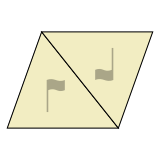
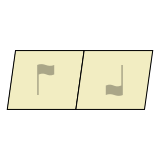
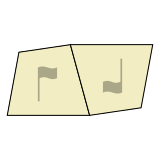
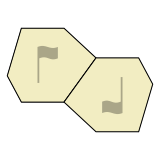
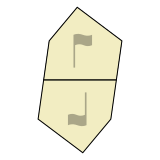
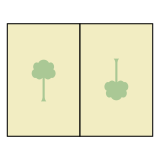
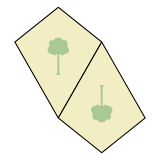
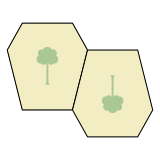
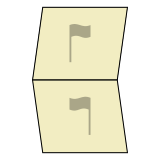
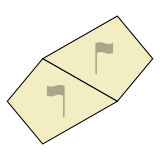
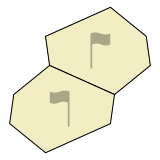
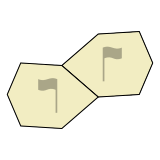
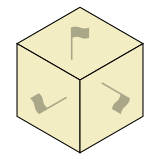
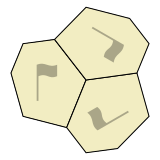
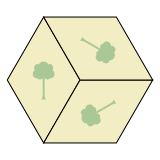
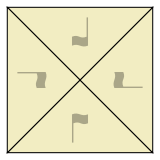
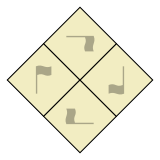
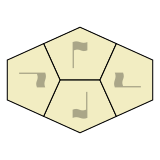
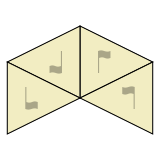
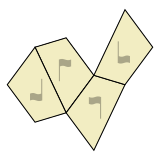
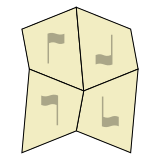
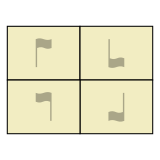
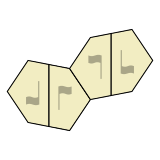
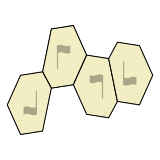
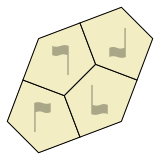
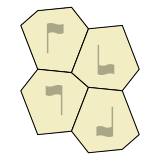
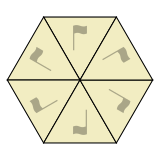
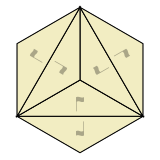
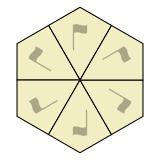
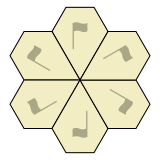
Related symmetries are grouped together in the chart, based on how many different ways tiles are oriented. For example, tiles in a “3-way” symmetry appear in 3 rotated orientations, while tiles in a “2-way with flip” symmetry appear in 2 flipped orientations.
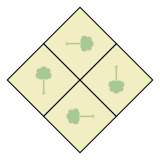
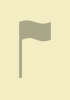
In the chart, “flag” or “tree” graphics help show how tiles are rotated and/or flipped.
The graphic is a tree when tiles are symmetrical across a central “mirror”, and a flag otherwise.
(To find symmetries by wallpaper group, Heesch type, IH type, or Mohr type, please see the Summary Table.)
Save tile for interior editing in Inkscape.
(For a suggested workflow see this help
section.)
The current tessellation has unsaved changes.
Do you want to proceed anyway?
|
|
||||
|
|
||||
|
|
||||
|
|
||||
(Not possible on this device)
(Note that changes affect only this browser and device.)
The best way to share your tessellated art is to export an image or video and post it to your favorite sharing site.
To export an image, choose “Export PNG image” or “Export SVG image” from the File menu. To export a video, open an animation via the View menu and choose “Export video”.
When sharing, please use the hashtag #TiledDotArt to help other Tiled.art users find your art.
Select frame style, then draw the picture rectangle on the canvas.
Drag on canvas to draw the picture rectangle. Use handles to resize, or zoom to adjust the view.
Export the tessellation tile as a 3D file for printing or CAD editing.
Save to:STEP export runs on your device. It may take several minutes depending on your device's processing power.